 Feny
FenyThe scheduling problem
An initial assessment and a return session often take different amounts of time. The next visit should fit the practitioner’s actual schedule.
Feny · Booking software by business type
Organize assessments, therapy sessions and return visits in Feny. Keep specialist hours and appointment durations clear.
Starter: 2 months free, no card required.
Included in Starter: up to 3 team members, 25 active services and 1 location.
Built around your daily work
An initial assessment and a return session often take different amounts of time. The next visit should fit the practitioner’s actual schedule.
Start with clearly named services: Initial assessment, Individual session, and Progress consultation. Set your actual prices and durations; these examples are suggestions, not a ready-made price list.
Separate assessments from follow-up sessions. Assign qualified specialists, configure their hours and arrange subsequent appointments using the recorded visit history.
A practical example
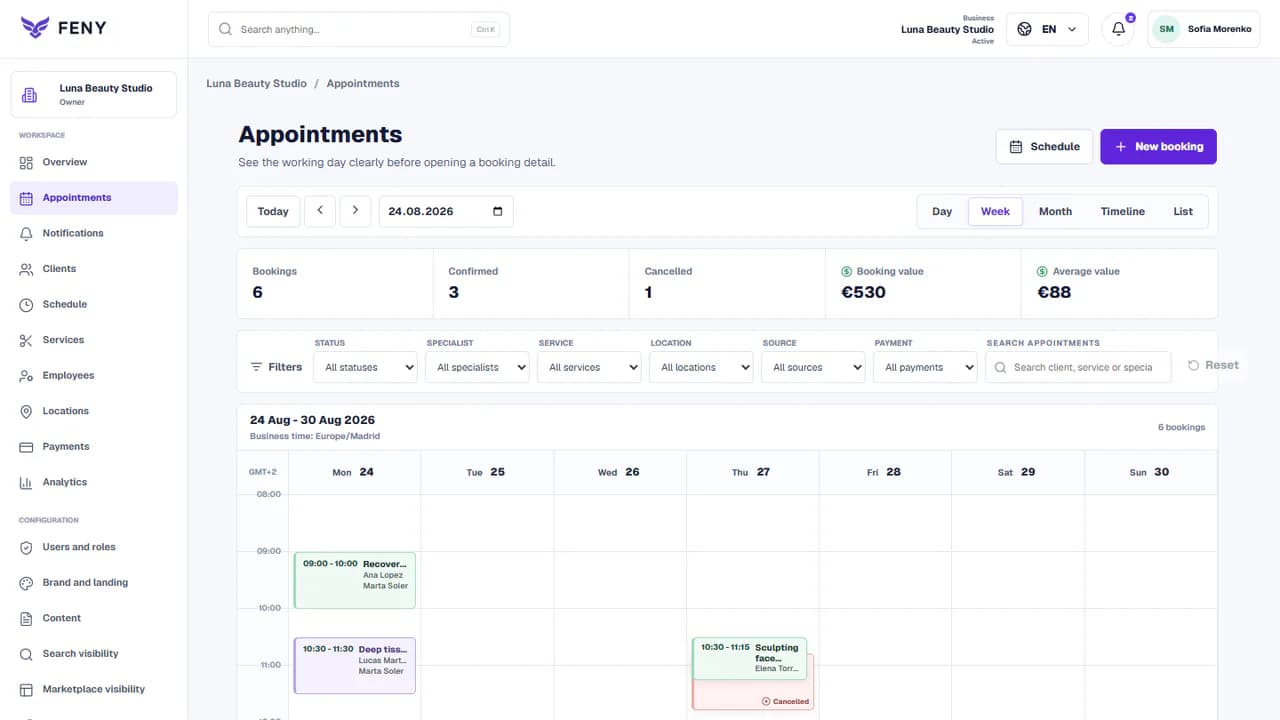
An initial assessment and a return session often take different amounts of time. The next visit should fit the practitioner’s actual schedule. Separate assessments from follow-up sessions. Assign qualified specialists, configure their hours and arrange subsequent appointments using the recorded visit history.
The customer chooses a defined appointment; the team sees the service, time and client in its workspace. Any specialist confirmation described above remains part of your business process.
Add your real services, team and working hours. Review the client journey before publishing.
Read the guideSeparate assessments from follow-up sessions. Assign qualified specialists, configure their hours and arrange subsequent appointments using the recorded visit history.
Assign each service to the people who deliver it, select the correct location and check working hours, absences and preparation time. Record offline bookings in the same calendar.
Make a test booking on a phone, check the confirmation and review each published language. Share the link only after the service, staff and location match your real operation.
Start with clearly named services: Initial assessment, Individual session, and Progress consultation. Set your actual prices and durations; these examples are suggestions, not a ready-made price list.
Treatment decisions and clinical records stay with the practitioner. A course description does not automatically create or pay for a series of appointments.
Yes. The team can enter appointments in the workspace and keep them connected to the client record. Use the same services and availability rules so offline and online bookings share the calendar.
Let clients choose a service, specialist and available time. Organize staff schedules and appointments in Feny, with a clear booking journey.
Build a public page with your services, team, photos and booking link. Edit the content, review each language and publish when your business is ready.
Keep client details, appointment history and useful notes together. Use Feny to prepare for the next visit and organize everyday client follow-up.
Manage team availability, working hours and absences in Feny. Connect specialists, services and locations to the appointments clients can book.
Starter: 2 months free, no card required.
Create my businessReview current plan limits and terms before publishing. Compare plans →