 Feny
Feny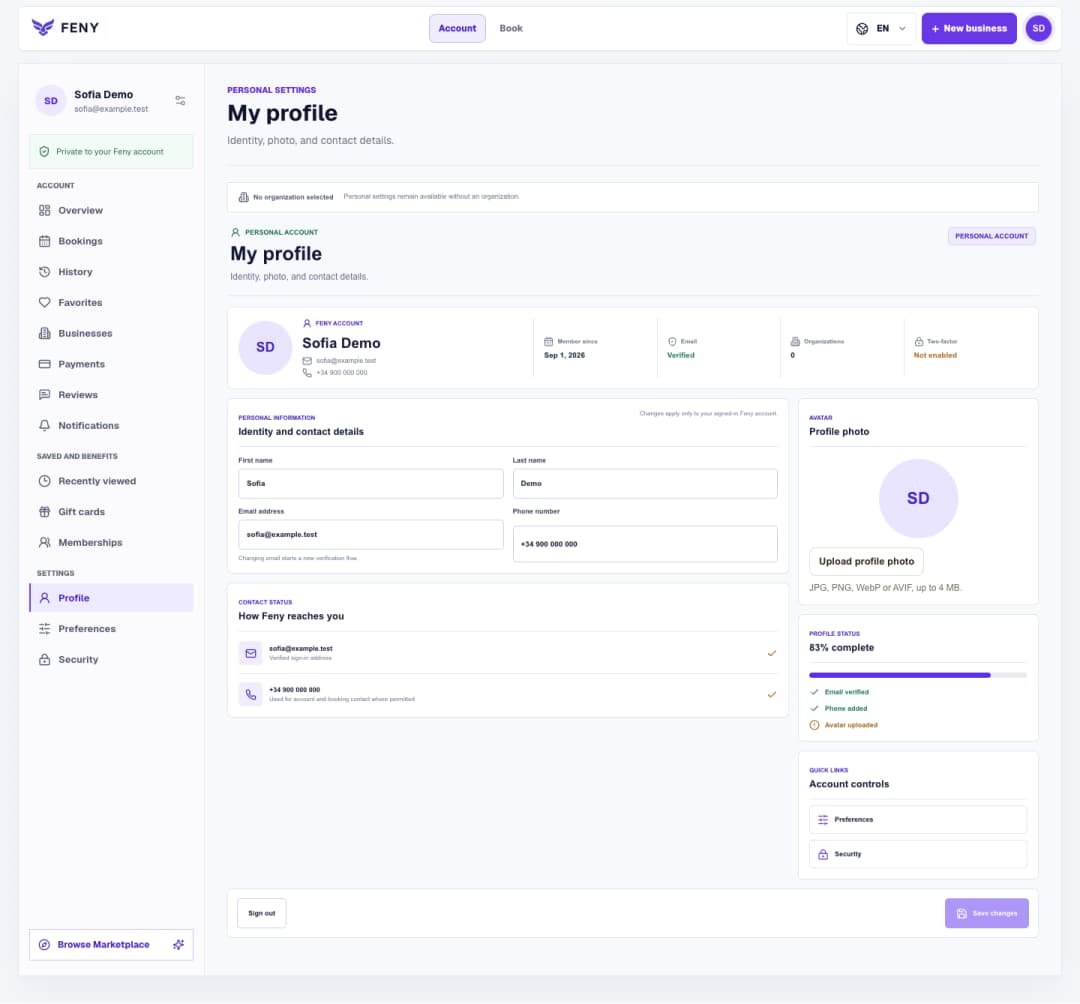
Set up your Feny profile and interface language
Find your personal settings, save contact details and a photo, then choose the language you want to use in Feny.
Read articleSave the private draft, check publication readiness and Marketplace visibility, then use the confirmed public links to test a booking.
Open “Publication and visibility” after saving services and working hours. The setup route is /business/{businessId}/onboarding/publish, where {businessId} is your business identifier. This step prepares a private draft for clients. If the business is already active, the route opens the completion page instead, where you can find its public links.
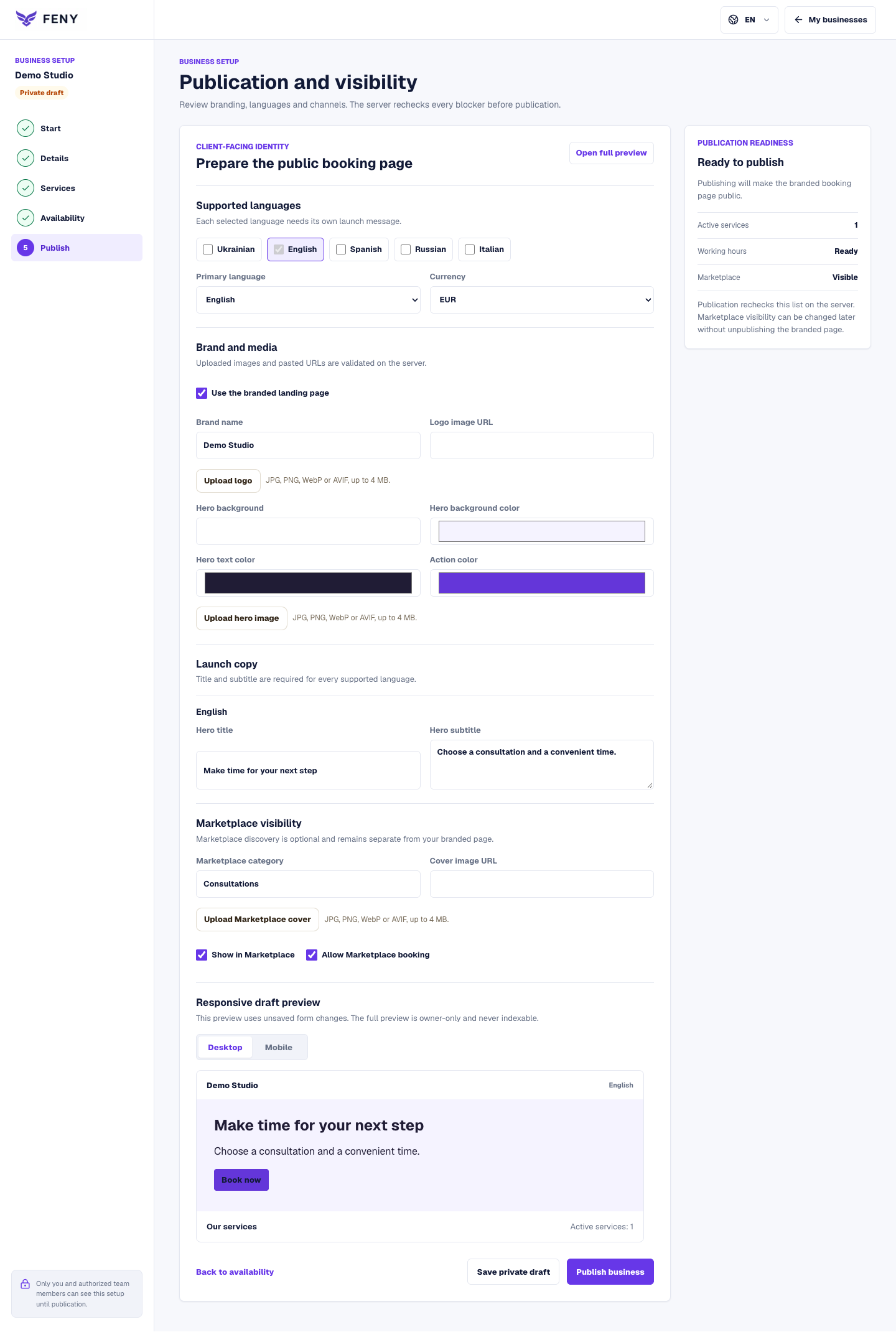
The branded page and Marketplace discovery have separate controls. Publishing makes the business available through its public page. “Show in Marketplace” controls discovery visibility, while “Allow Marketplace booking” controls that channel’s booking setting. For a business to appear as bookable in Marketplace, review both switches together. A published branded page can remain outside Marketplace.
Prepare and publish in six steps:
On the completion page, choose “Open public page” and “Open booking flow”. Typical paths are /en/b/{businessSlug} and /en/b/{businessSlug}/book; the displayed links use your business language and slug. Open the public link in a private browser window to check the visitor view. An owner preview containing ?preview=1 is intended for reviewing the draft and should not be the link you share.
Check the service name, duration, price, location and an available date. Continue through the offered contact and booking steps using details you control. Selecting a time alone is not completion. If you submit a test booking, it becomes a real appointment: inspect its final status and remove it through the permitted cancellation or owner workflow when finished. With owner approval, a pending request is different from a confirmed appointment.
“Publish business” checks saved data; it does not save the form’s latest edits for you. Save again after changing languages or text. Also, readiness verifies required setup rather than every possible visit. Missing staff assignments, closed dates or booking rules can still explain an empty calendar, so test an actual service before distributing the link.
Related reading
Explore more ways to improve your service and client experience.Find your personal settings, save contact details and a photo, then choose the language you want to use in Feny.
Read article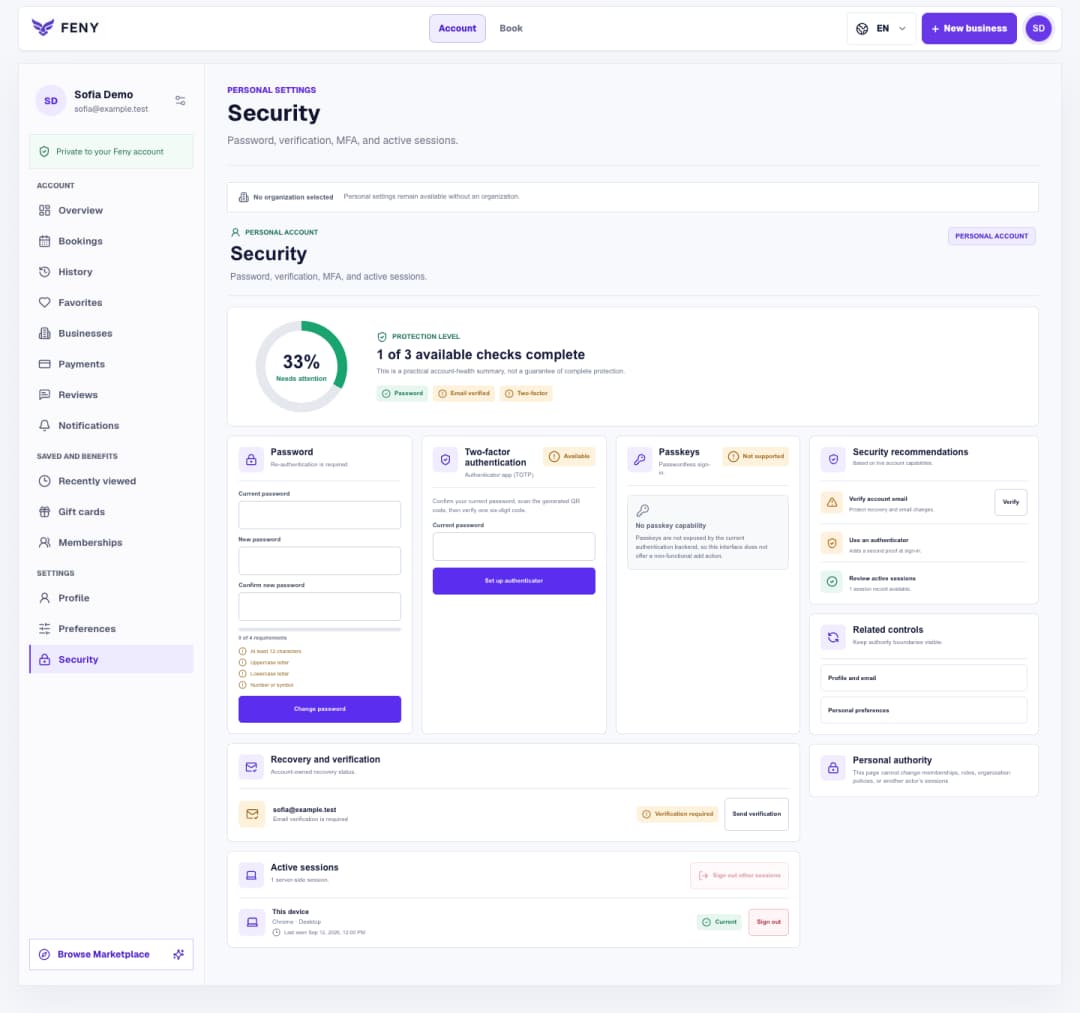
Follow the Security screen step by step to verify your email, manage your password and authenticator, and review signed-in devices.
Read article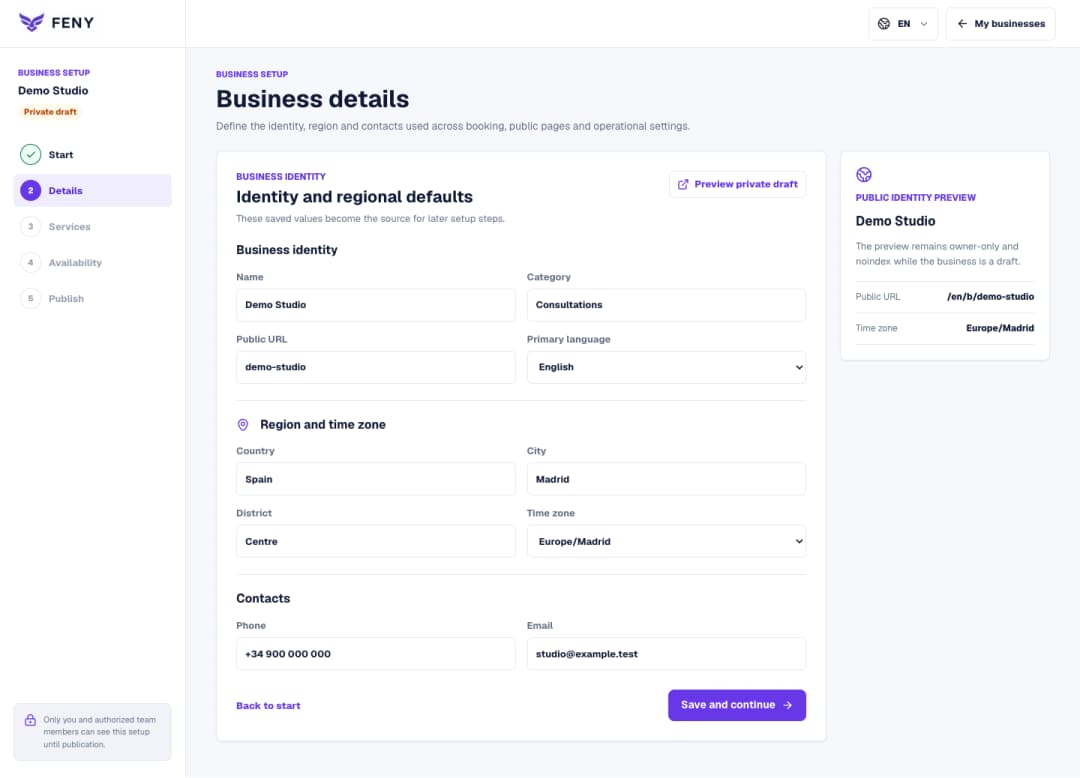
Complete the name, public URL, primary language, region and contacts in the Business details step of your private draft.
Read article