 Feny
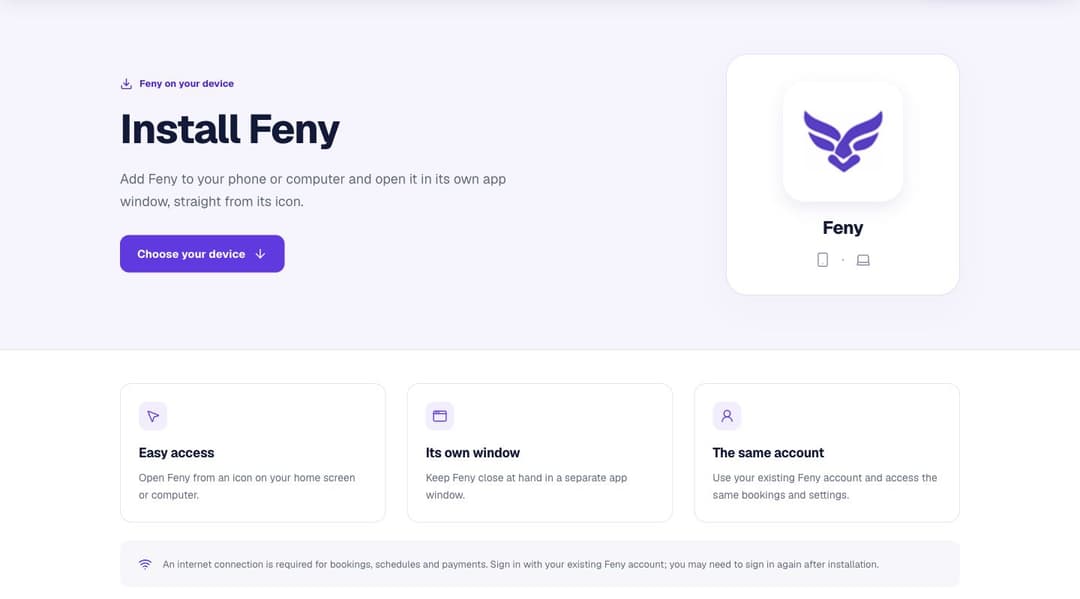
Feny is now an app on your phone and computer
Add Feny to your home screen or desktop. Here is what changes, who it helps and how to install it on iPhone, Android, Windows and Mac.
Read articleA practical guide to Feny’s available features: online booking, team calendars, CRM, business websites, courses, equipment rentals and industry workflows. With examples and setup steps.
Feny brings together a business page, service catalogue, online booking and business workspace. Clients find a service and choose an available time, while the team manages appointments and clients in one place. This guide covers features available on the website as of 20 October 2026, with examples of how to use them in everyday work.
Feny supports independent professionals and teams working across several locations. A salon manages its stylists’ appointments; a teacher organises lessons and groups; a workshop offers diagnostics and repair services. Equipment rentals and property viewings have dedicated workflows. You configure the service format to suit the way your business operates.
The booking page shows services, prices and duration. Clients can use search and categories, select a service and professional, then choose an available time. Compatible individual services can be selected together for one visit, with availability calculated for the combined duration. For example, a barbershop client can choose a haircut and beard care before opening the calendar.
Clients can book 24/7, while appointments take place within the business’s available schedule. Guests verify their email; account holders can book through their account. The final booking outcome depends on confirmation and, where configured, payment.
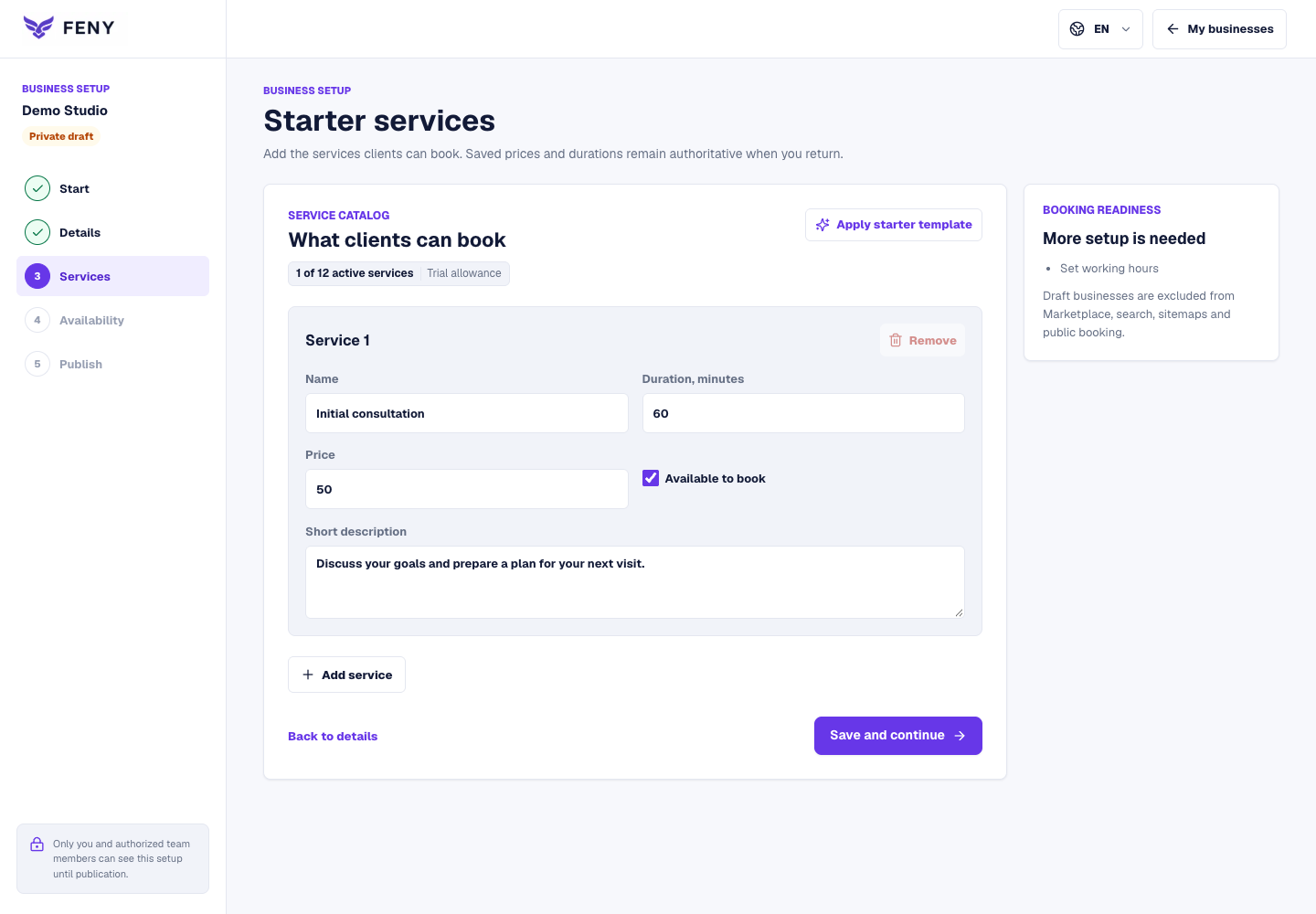
The business workspace lets you create services, set prices and duration, organise categories and assign professionals. Working hours, breaks and absences affect bookable times. Businesses operating at several addresses can manage locations and associate services and team members with them.
Owners invite staff and assign appropriate roles. This helps share responsibilities: an administrator manages bookings while a professional works with the visits they have access to. Before opening bookings, check one service, its assigned professional and their schedule together.
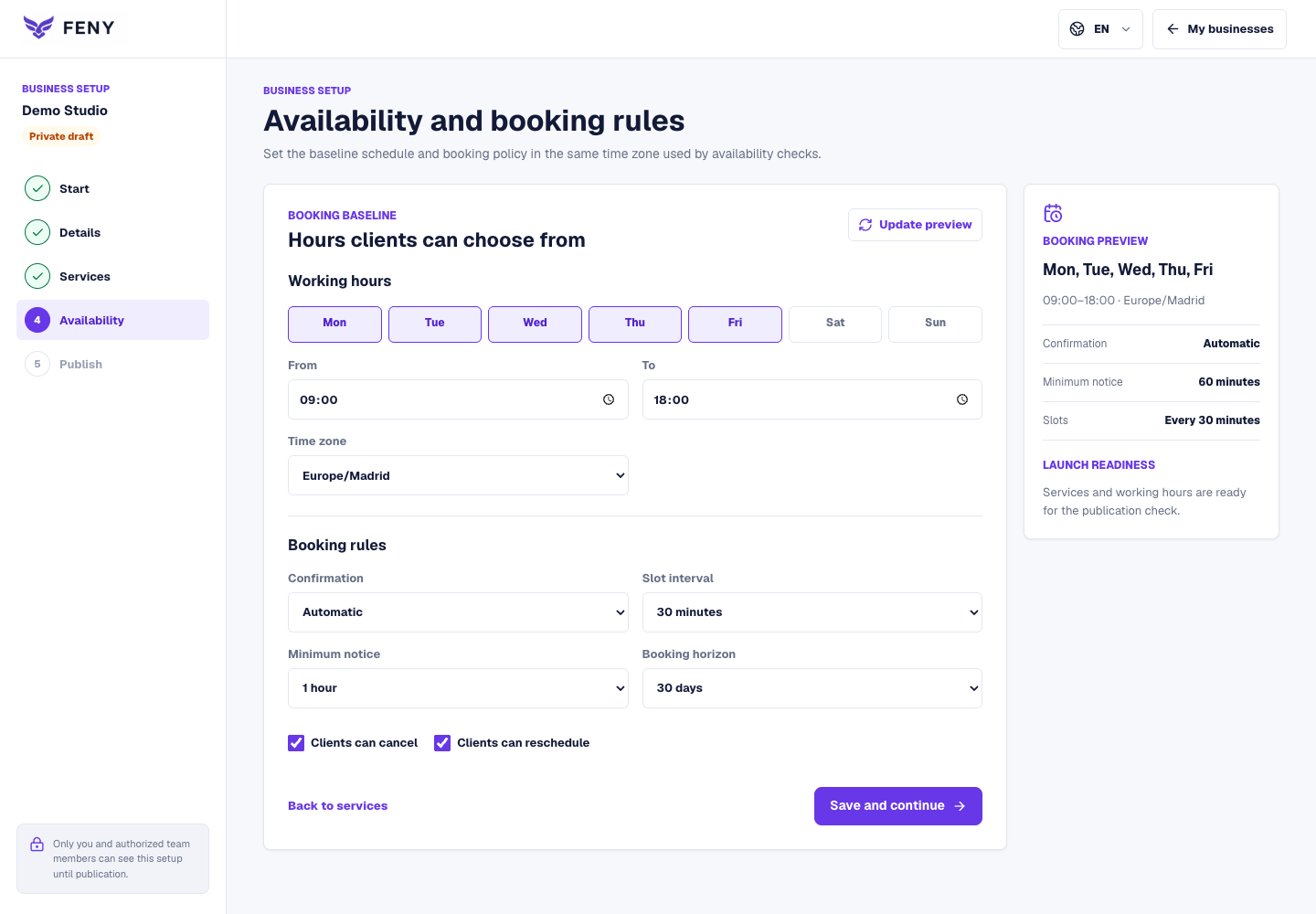
Teams can view appointments, add them manually, reschedule or cancel under the business’s rules, and mark completed visits and no-shows. Client contacts and visit history help prepare for returning customers. An administrator can review previous bookings before arranging the next appointment.
Analytics help you review bookings, team utilisation and financial indicators based on records entered in Feny. Useful reports depend on keeping appointment and payment statuses up to date. These indicators describe activity recorded in the platform and do not replace accounting.
The website editor lets you configure the main section, services, photos, gallery, business description, contacts and other sections. Save changes as a draft, check the preview and publish when ready. This is useful when updating an offer or replacing photos without a separate website development project.
Marketplace visibility has its own settings. You can place a booking widget on an existing website; using your own domain requires connecting and configuring it. A complete profile helps clients understand what you offer, where you work and how to book.
Teachers, schools and trainers can create groups with an instructor, capacity and recurring schedule, maintain a regular student roster and track attendance. Attendance can be marked in bulk and corrected. For children’s lessons, the participant and adult contact can be recorded separately.
When full-course enrolment is enabled and its lessons are published, students see the dates and total price and enrol once. A place is reserved across the relevant lessons. Configured online payments use a single course checkout; otherwise, payment is arranged with the business. A school could offer a 16-lesson course instead of asking for 16 separate bookings. Clients can find their courses in “My classes”.
Rental settings cover equipment, available quantities, rental periods and duration, prices and additional options. The system accounts for reservations against available stock, while staff record issue and return. Overdue equipment that has not been returned is taken into account when checking availability.
A security deposit is recorded separately from the rental price, with operations for receipt, refund and deduction. Recording an operation does not automatically transfer money through a bank. One example is renting an equipment kit for several hours, with quantities checked before confirmation.
Garages and workshops can offer diagnostics, oil changes, repair services and consultations. If the scope of a repair will only be known after inspection, start with a diagnostic appointment of a defined duration.
An estate agency can link a viewing service to a particular property so it remains attached to the booking, or offer a service without requiring a property selection. Remote consultations can use an online format; creating a Google Meet meeting requires a connected Google integration and the relevant service configuration.
A business can accept payment in person or connect online payments. When a service requires an advance payment, its terms are configured by the business and shown during booking. Online payments require an active payment connection; Google Calendar is also connected separately.
Clients can return to upcoming and past bookings in their account, save favourite businesses and manage profiles for family and friends. Feny works on phones and computers, supports five languages and can be installed as a web app. Current bookings, payments and synchronisation require an internet connection.
Start with one working scenario, such as booking a consultation. Once the service, schedule and page are consistent, add your team, groups or rentals. This makes it easier to check the result and show staff how to use the system.
Related reading
Explore more ways to improve your service and client experience.Add Feny to your home screen or desktop. Here is what changes, who it helps and how to install it on iPhone, Android, Windows and Mac.
Read article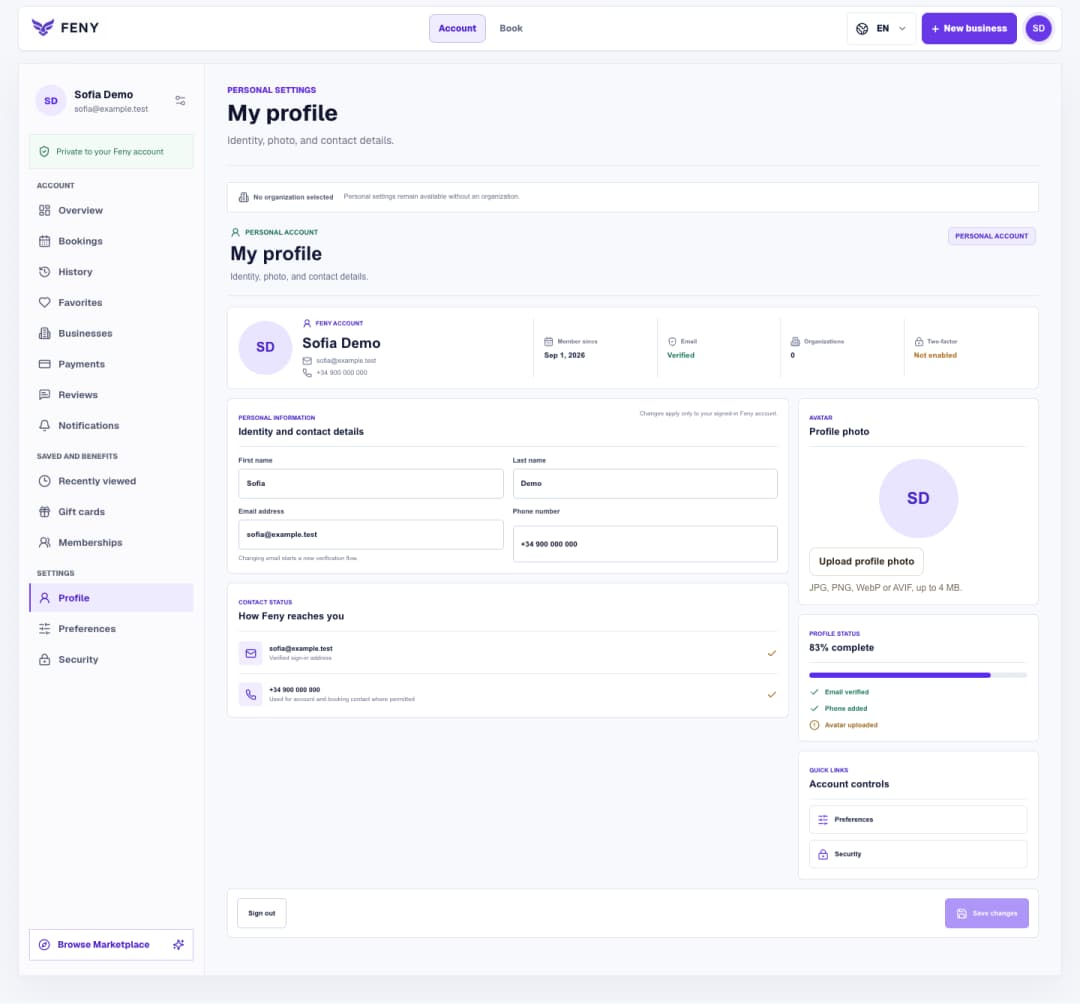
Find your personal settings, save contact details and a photo, then choose the language you want to use in Feny.
Read article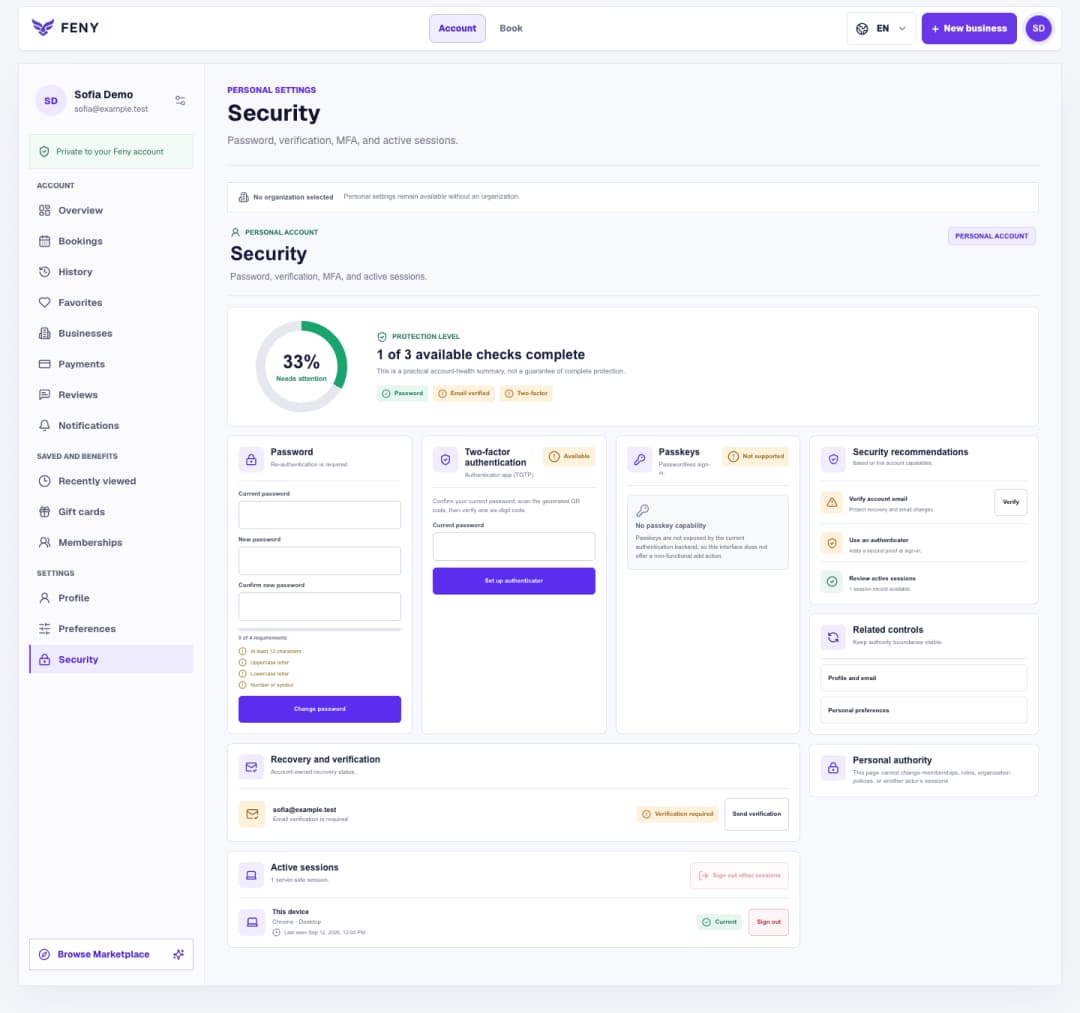
Follow the Security screen step by step to verify your email, manage your password and authenticator, and review signed-in devices.
Read article