 Feny
Feny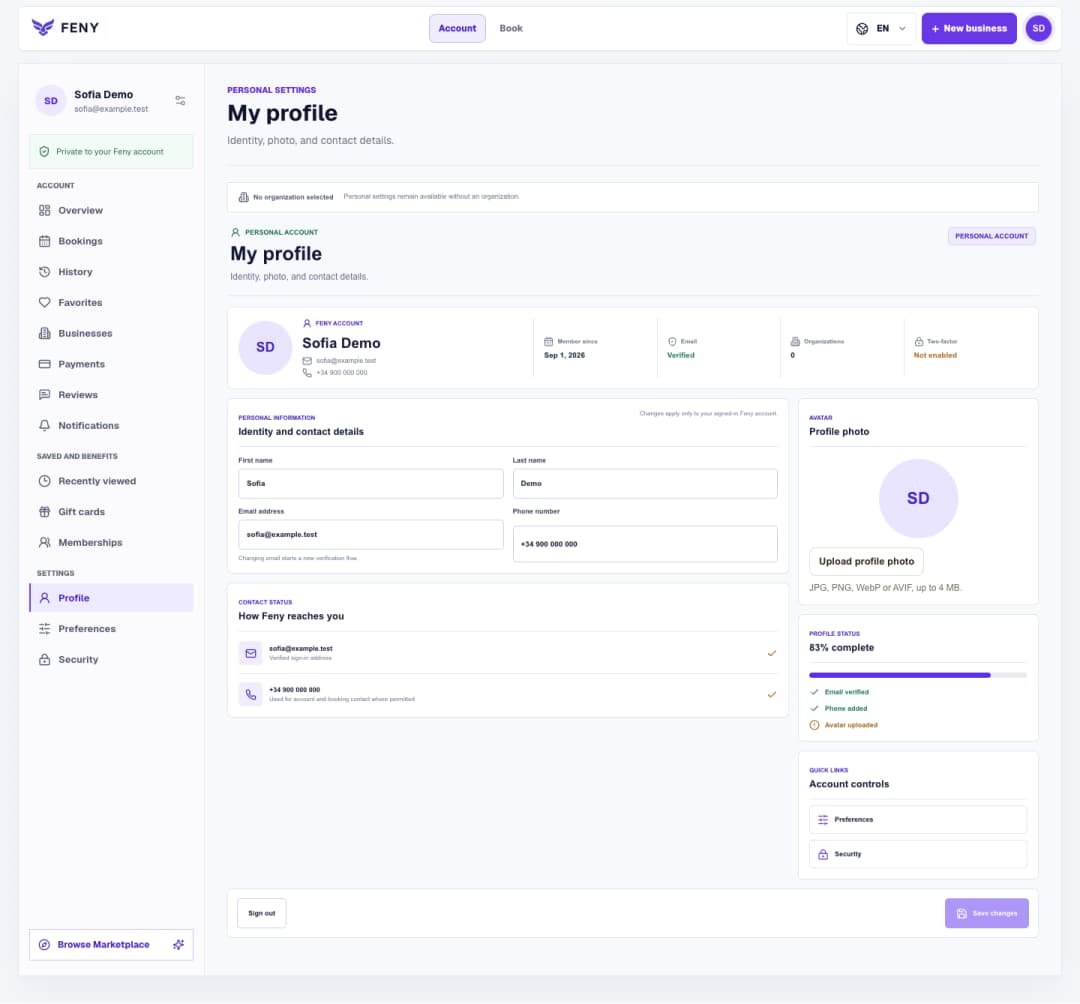
Set up your Feny profile and interface language
Find your personal settings, save contact details and a photo, then choose the language you want to use in Feny.
Read articleFollow the Security screen step by step to verify your email, manage your password and authenticator, and review signed-in devices.
Use this guide after creating your account or when you want to review who can access it. Have your email inbox and current password available. If you choose to set up two-factor authentication, you will also need an authenticator app. These controls protect your personal Feny account across organizations.
From your account at /user, choose “Security”, or follow the “Security” link on “My profile”. The direct address is /user/security. Wait for the account data to load. The overview summarizes password, email and two-factor status. Use it to find unfinished steps, then review the available actions and the device list below.
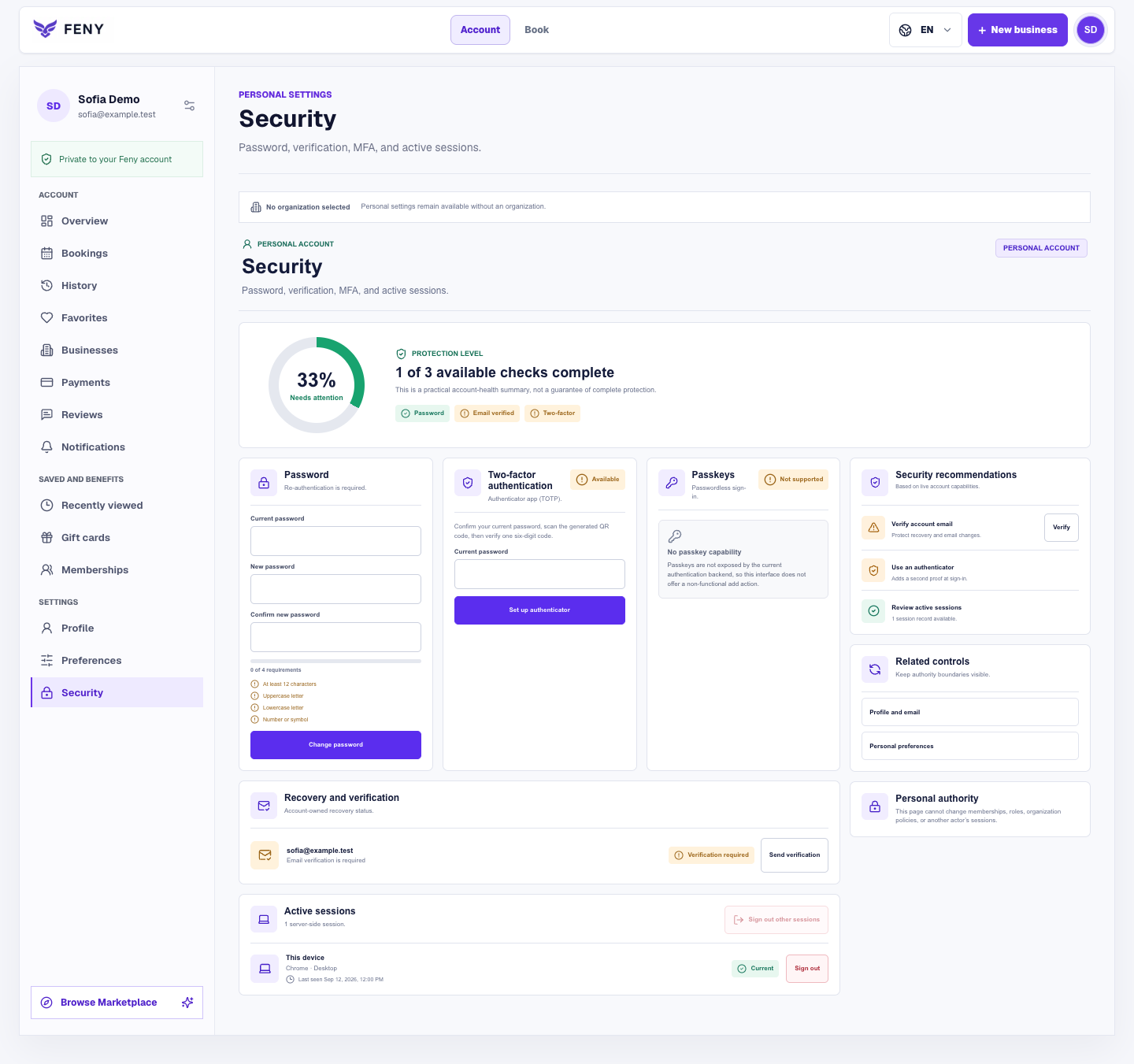
An account without a local password shows “Set a password” instead. Follow that form to add password sign-in; Google sign-in remains available. After changing an existing password, the success message confirms that other sessions were signed out. A verification request alone does not make the email verified: complete the email instructions and check the status again.
If authenticator setup is unavailable, the page explains that state; a missing setup button is not solved by repeatedly submitting another form. Recovery codes are shown once and each works once. Generating a new set invalidates unused codes from the previous set, so replace your saved copy when you do that.
In “Active sessions”, recognize “This device” before taking action. Use “Sign out” on a device you no longer use, or “Sign out other sessions” to keep the current one and end the others after confirmation. Signing out the current session takes you back to sign-in. Finally, recheck email and two-factor status and the remaining session list.
Related reading
Explore more ways to improve your service and client experience.Find your personal settings, save contact details and a photo, then choose the language you want to use in Feny.
Read article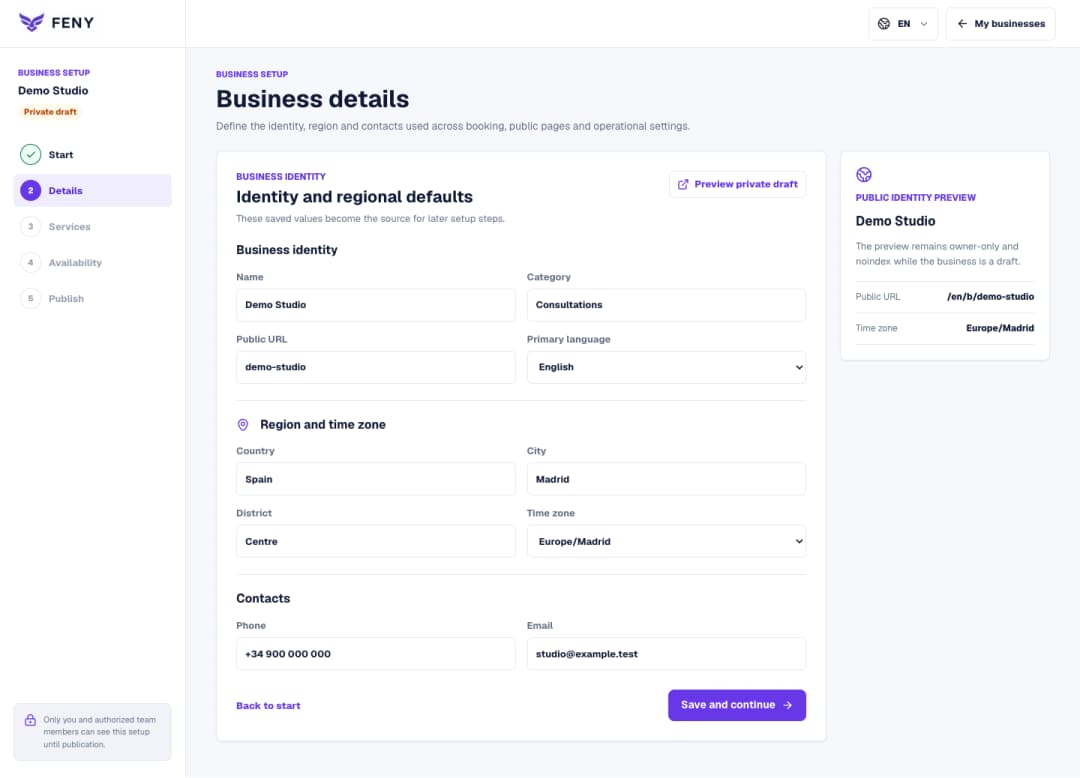
Complete the name, public URL, primary language, region and contacts in the Business details step of your private draft.
Read article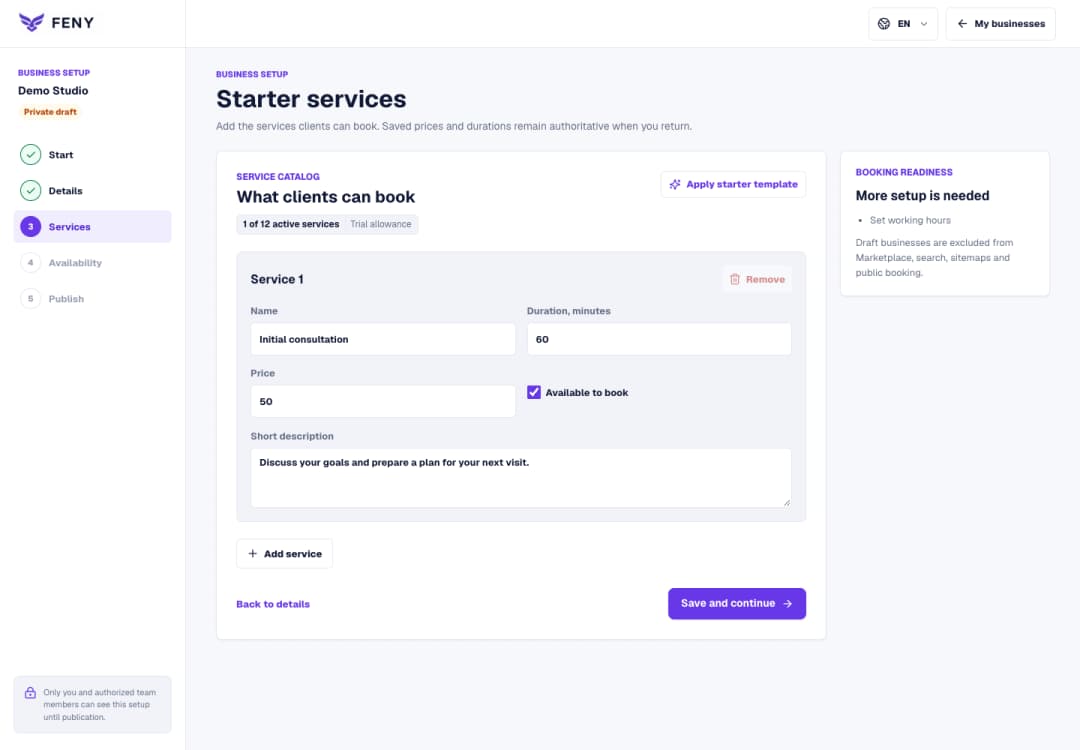
Use Starter services to enter a clear name, duration, price and short description, then continue to working hours.
Read article