 Feny
Feny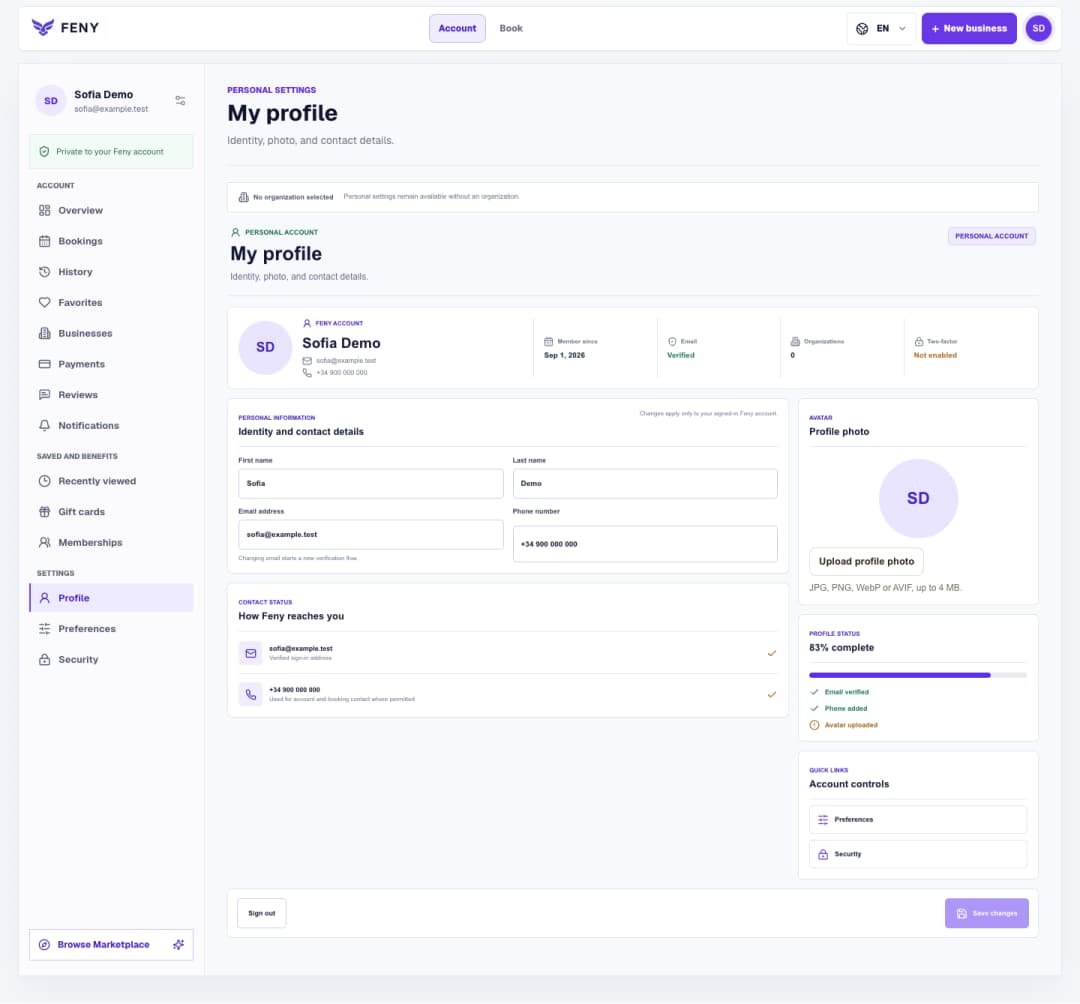
Set up your Feny profile and interface language
Find your personal settings, save contact details and a photo, then choose the language you want to use in Feny.
Read articleAdd Feny to your home screen or desktop. Here is what changes, who it helps and how to install it on iPhone, Android, Windows and Mac.
You can now install Feny as a web app, with its own icon and separate window. Reach it without finding a browser tab. Installation changes how you open Feny; your account, bookings and business access remain the same.
Open /en/install on your device. When your browser offers installation, use “Install app” and confirm. Otherwise, follow the instructions below. In these steps, “this page” means the Feny installation page, available in your selected language.
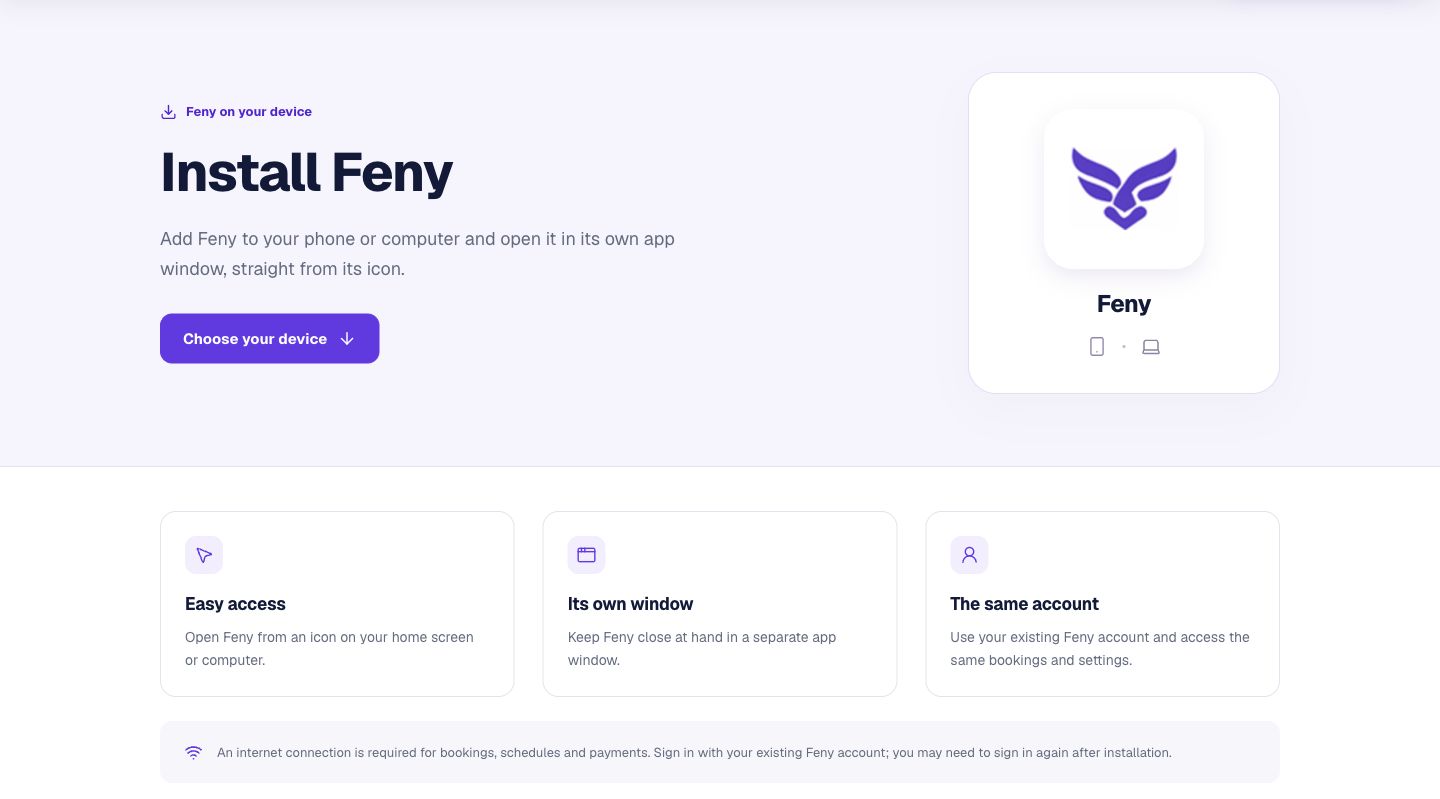
Menu names and available options may vary with your browser version and device language.
After installation, launch Feny from the new icon and sign in if asked. Check that your profile and usual workspace are available. A separate app window can have a separate sign-in session, so a login request does not mean your account has disappeared.
Open the page in the browser named for your device and use its menu. Installation availability can depend on the browser and its settings. If you already added Feny, look for its icon first. You can always continue using the website while deciding whether to install it.
Related reading
Explore more ways to improve your service and client experience.Find your personal settings, save contact details and a photo, then choose the language you want to use in Feny.
Read article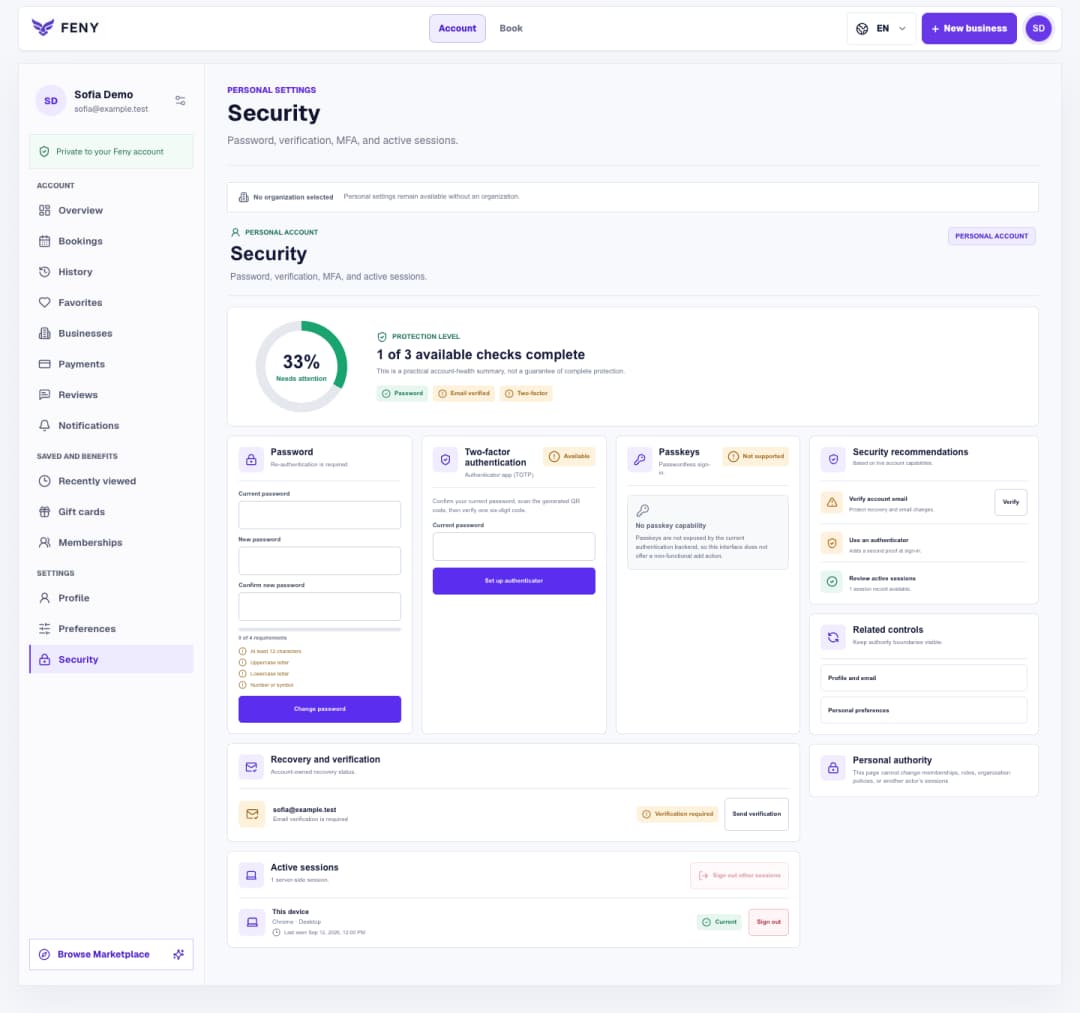
Follow the Security screen step by step to verify your email, manage your password and authenticator, and review signed-in devices.
Read article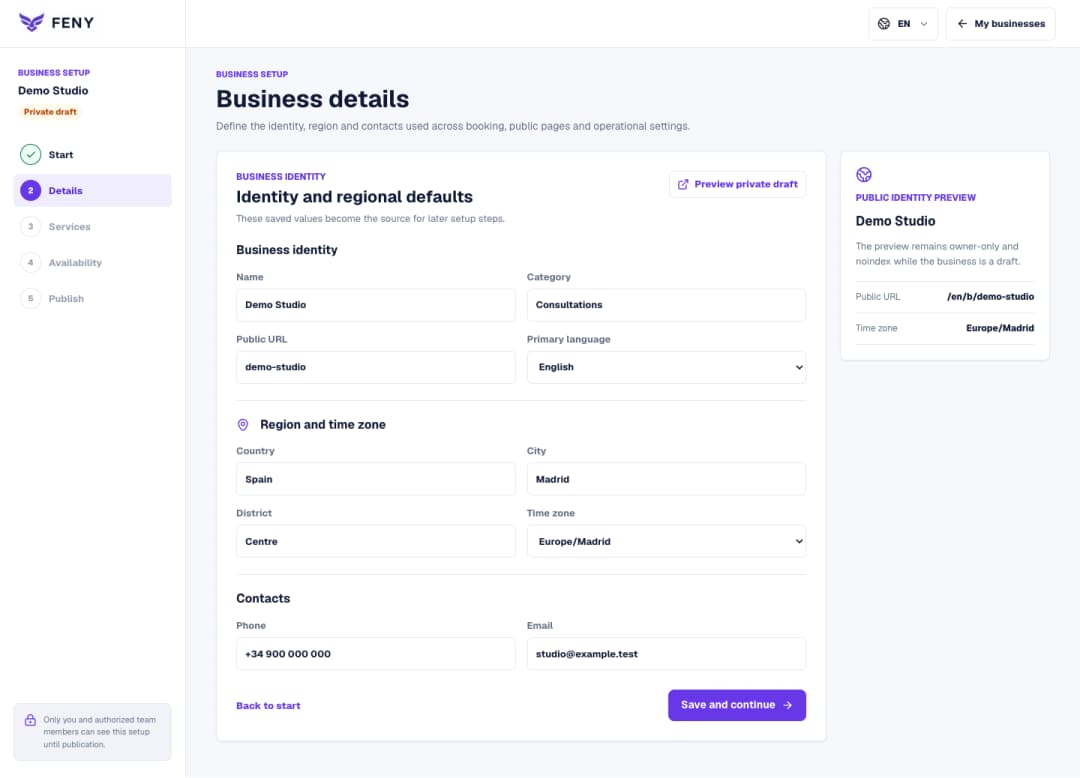
Complete the name, public URL, primary language, region and contacts in the Business details step of your private draft.
Read article