 Feny
Feny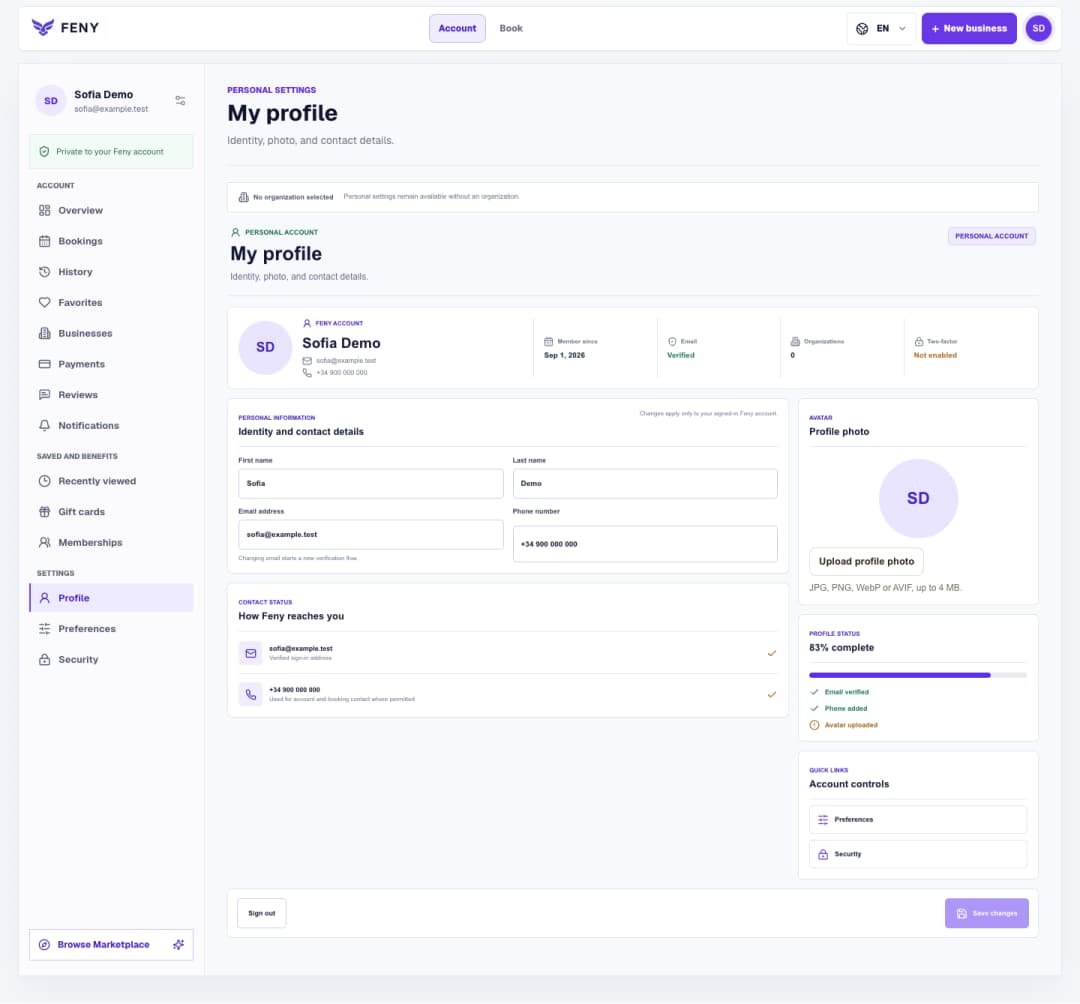
Set up your Feny profile and interface language
Find your personal settings, save contact details and a photo, then choose the language you want to use in Feny.
Read articleUse Starter services to enter a clear name, duration, price and short description, then continue to working hours.
After saving Business details, the setup flow opens Services. The page title is Starter services. This guide is for an owner preparing a new business draft; team members need permission to manage services. Start with one appointment that you already offer and can describe clearly. A small, accurate catalogue is easier to check before you prepare the schedule.
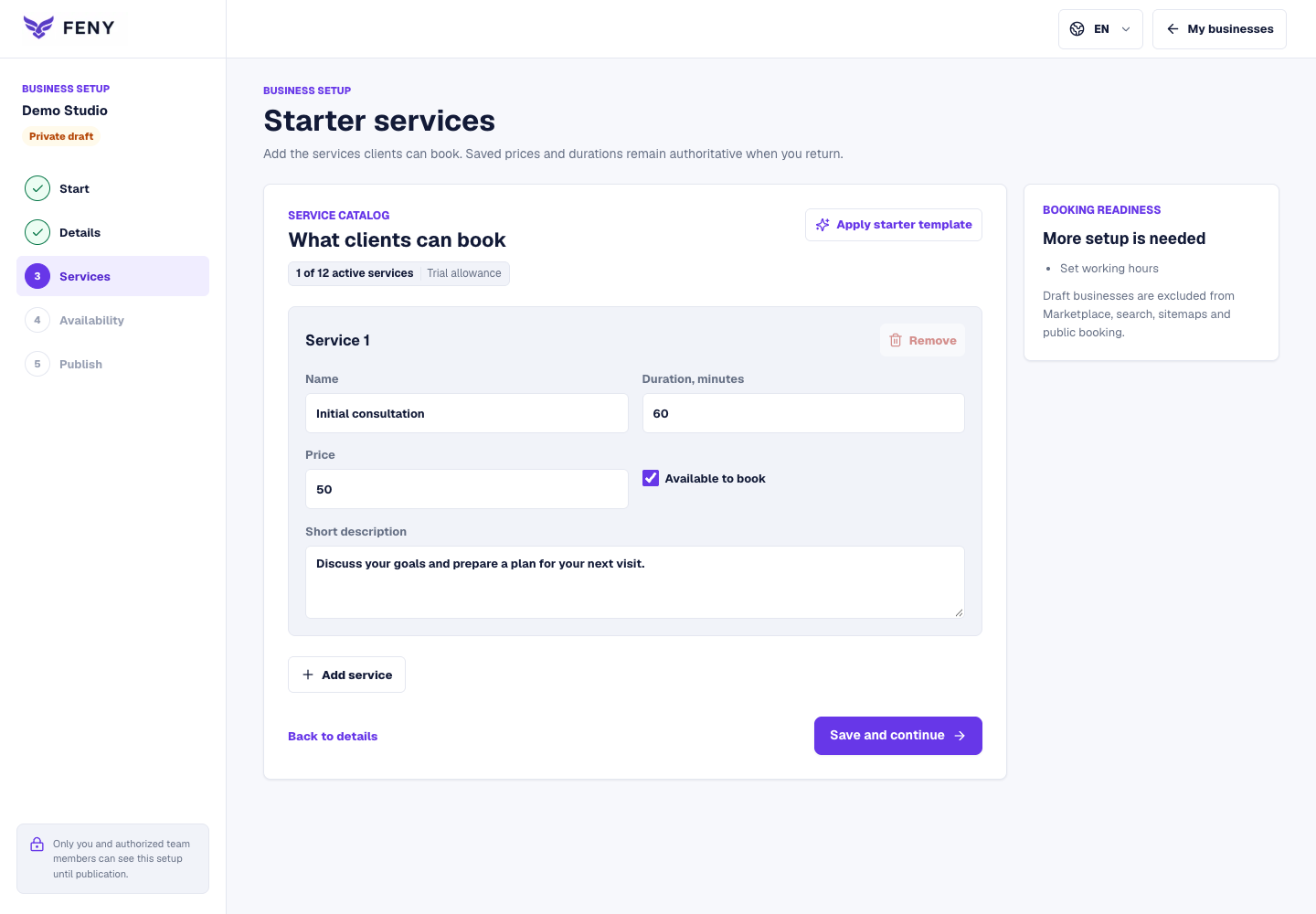
Use the service row already displayed. If you arrived from a demonstration, replace any suggested names that do not fit. Apply starter template loads an editable starting set; use it before personalizing the catalogue and review the result. It is an action that saves the template, not a preview of it.
In Name, write what the client will receive, such as an initial consultation. In Short description, explain what is included and any preparation needed. Keep the name within 90 characters and the description within 500. Avoid internal abbreviations that a new client would not understand.
Set Duration, minutes to the time needed for this service. The form accepts 15–480 minutes in steps of five. Enter Price deliberately rather than keeping the starting value of zero by accident. Check both numbers together: a longer version of an appointment should be described and timed accordingly.
Leave Available to book selected for a service you intend to offer. Clear it for a row you are not ready to offer yet. The active-service counter updates as you change the selection. An active service in a private draft still needs the remaining setup before clients can book it publicly.
Use Add service only when you need another distinct option, and Remove for an unnecessary row. Check the allowance shown above the list. At the active-service limit, disable or remove a service before adding another. Check every remaining row for a meaningful name and accurate values.
Press Save and continue. A successful save opens Availability, where you prepare working hours and booking rules. If saving fails, read the message and correct the form. Returning to Services restores the saved values so you can verify that the duration, price and description are correct.
Related reading
Explore more ways to improve your service and client experience.Find your personal settings, save contact details and a photo, then choose the language you want to use in Feny.
Read article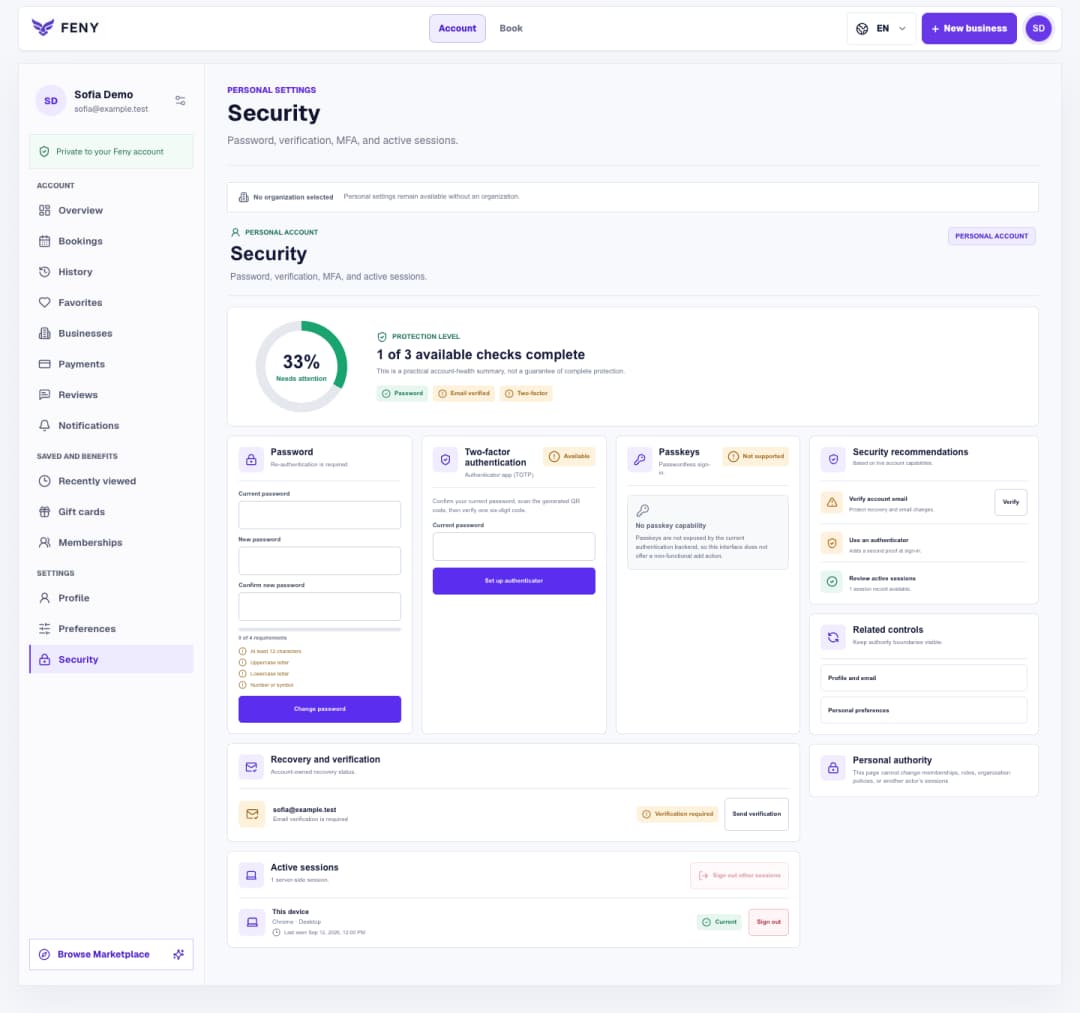
Follow the Security screen step by step to verify your email, manage your password and authenticator, and review signed-in devices.
Read article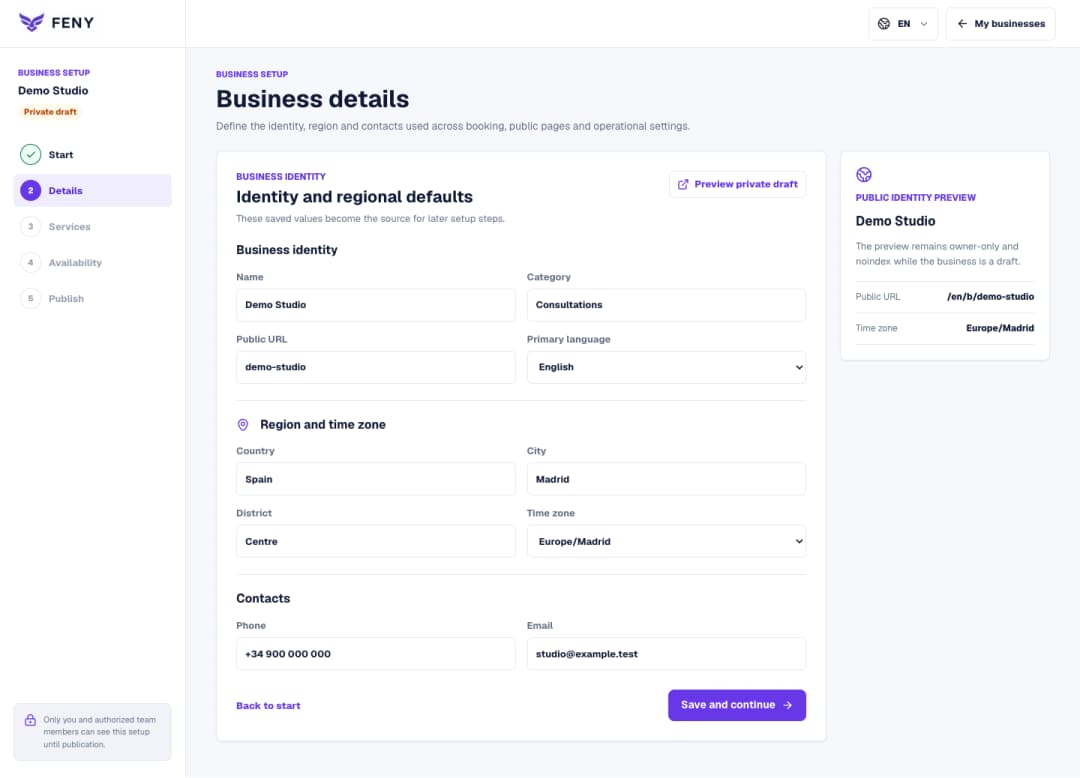
Complete the name, public URL, primary language, region and contacts in the Business details step of your private draft.
Read article