 Feny
Feny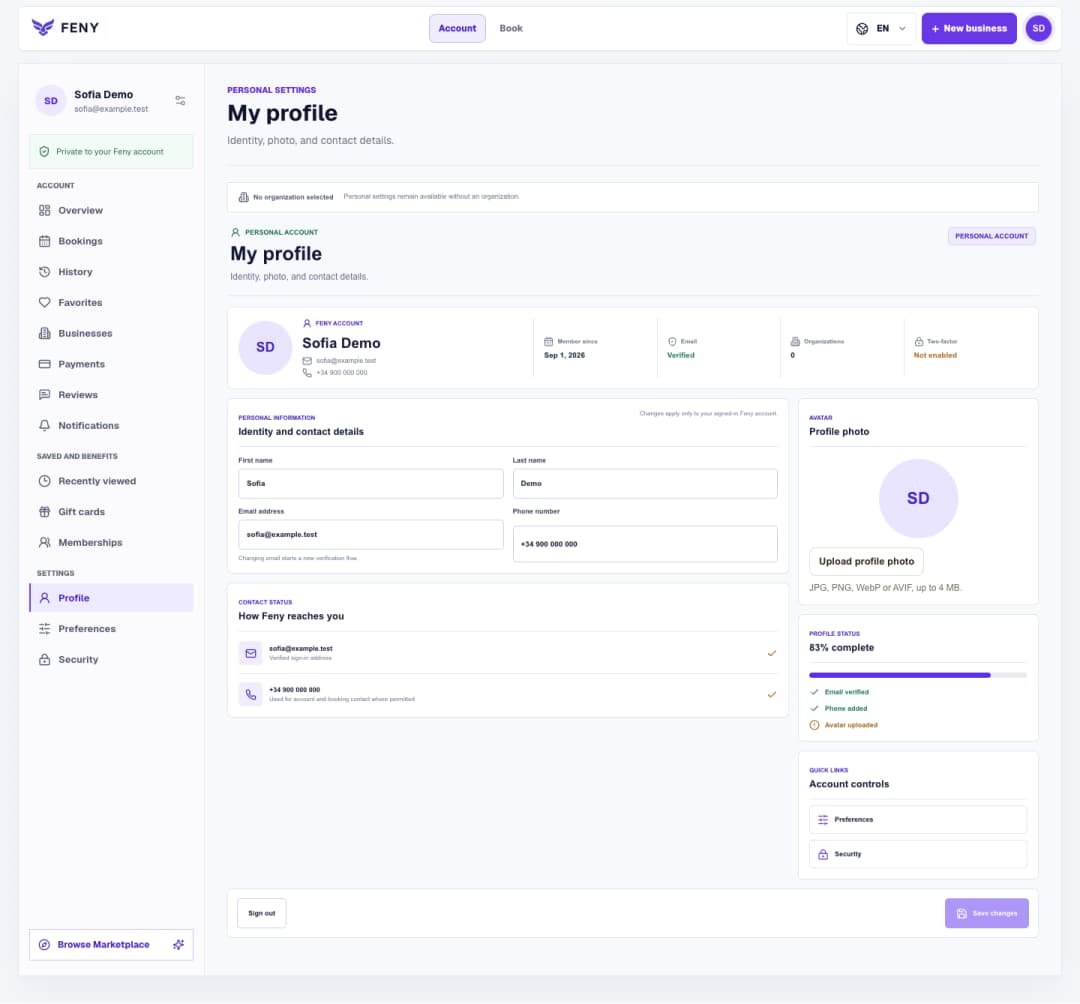
Set up your Feny profile and interface language
Find your personal settings, save contact details and a photo, then choose the language you want to use in Feny.
Read articleComplete the name, public URL, primary language, region and contacts in the Business details step of your private draft.
Once you have created a business draft, continue to the Details step of Business setup. This guide is for the owner setting up a new business; authorized team access depends on permissions. Prepare the business name, a contact email and the time zone you use for appointments. The form supplies the identity and regional defaults used in later steps.
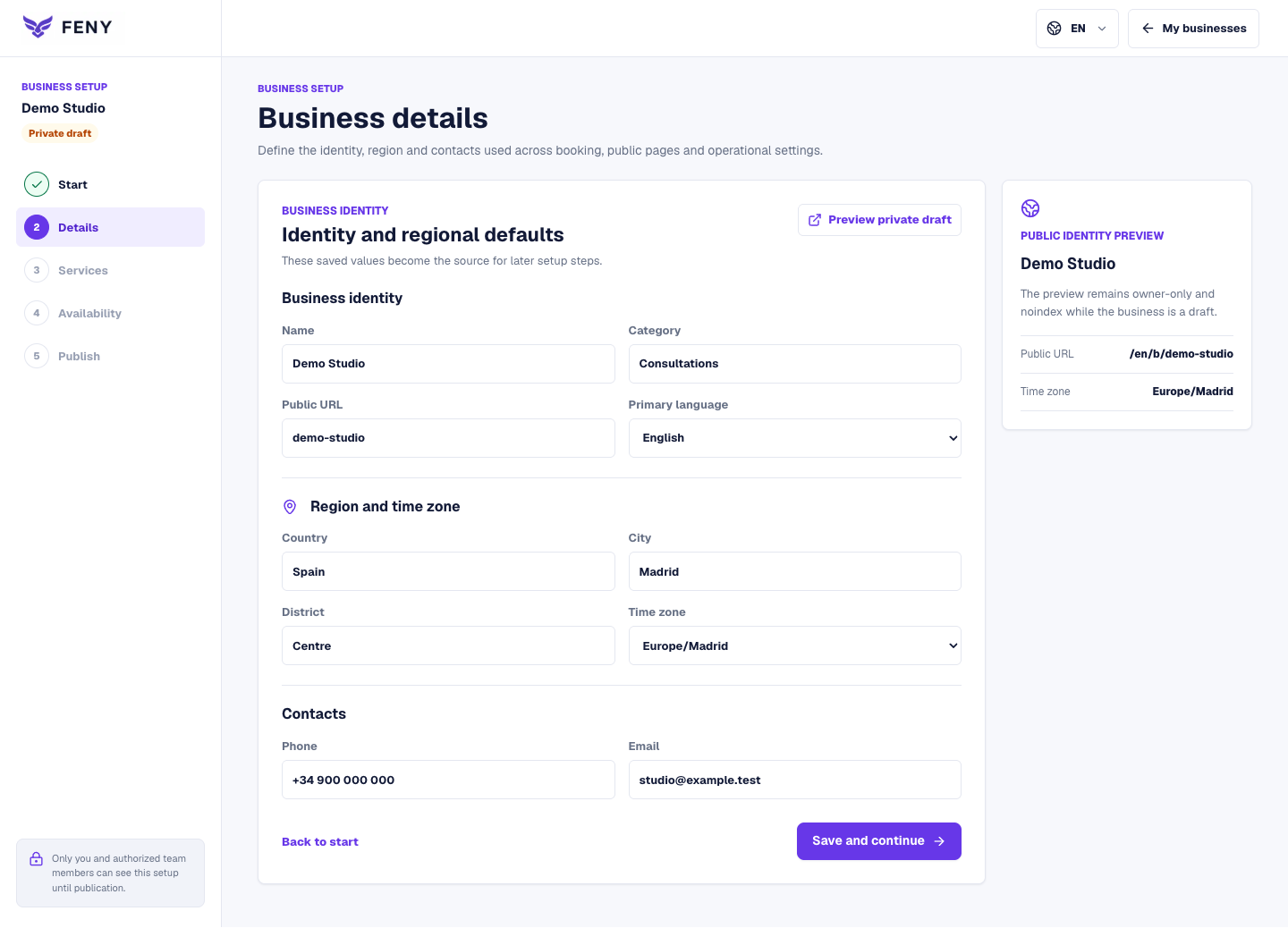
Under Business identity, enter the Name clients recognize. In Category, describe the kind of service you provide, such as massage or consulting. If a demonstration supplied a suggested category, check it before saving. Use a specific description that fits your own business.
Public URL contains the short name used in your page address. Enter the business name or a simple memorable variant; the form normalizes the text. Check the address in Public identity preview. If the name is already taken, use the suggested alternative or choose another and save again.
Select Primary language from the languages already available for this business. This chooses its main language; the language control in the top bar changes the interface you are using. Review supported languages later in Publish when preparing the public page.
Fill Country, City and District where relevant. Choose Time zone for the business schedule: for a business operating on Madrid time, use Europe/Madrid. These are regional profile fields. This screen does not ask you to create a separate location or enter its street address.
In Contacts, review Phone and Email. Use contact details intended for the business and check the spelling carefully. This saves profile contacts; it does not change the email you use to sign in. Avoid leaving demonstration details in the real profile.
Choose Save and continue. A successful save opens Services. If validation fails, stay on the form and correct the highlighted message; an unavailable public URL may offer a replacement. Use Preview private draft to inspect the saved page when returning to this step.
Related reading
Explore more ways to improve your service and client experience.Find your personal settings, save contact details and a photo, then choose the language you want to use in Feny.
Read article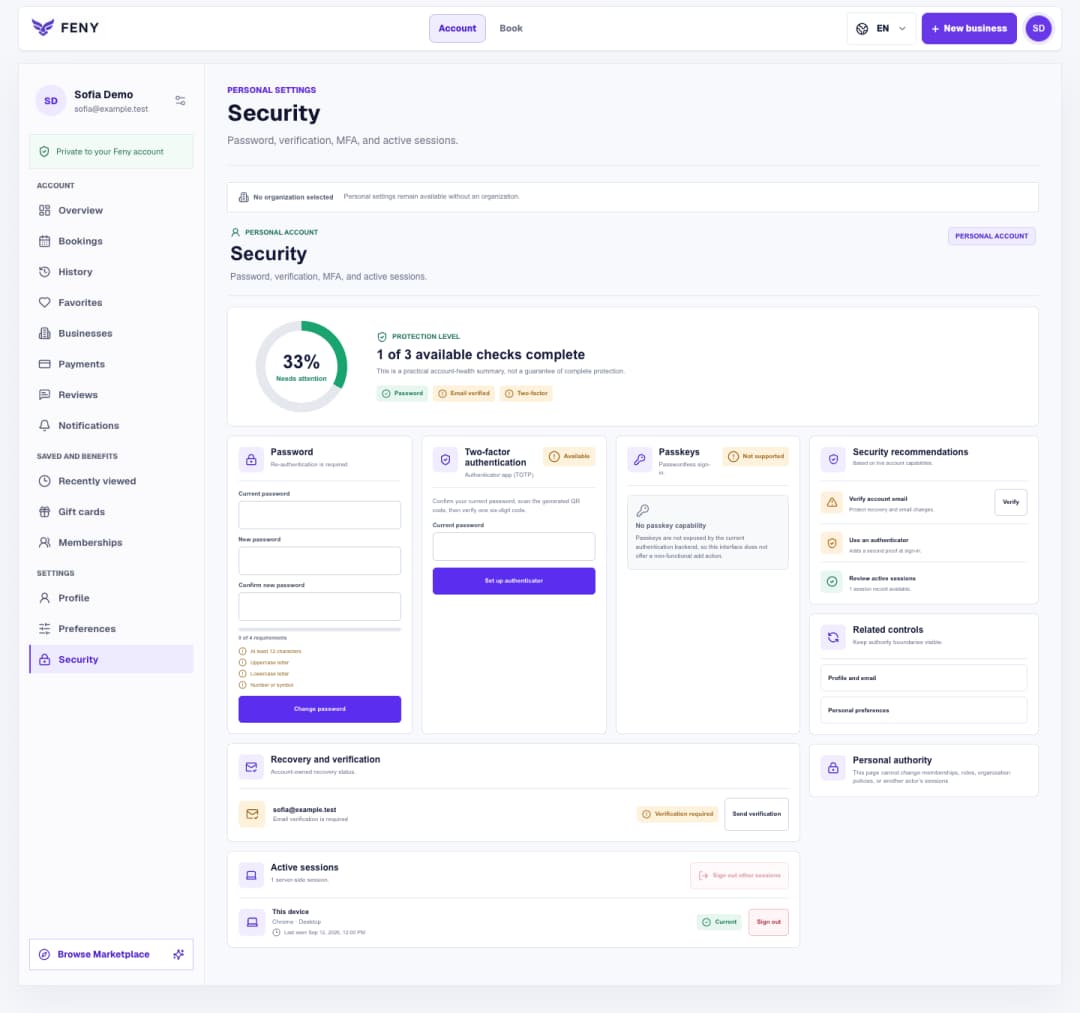
Follow the Security screen step by step to verify your email, manage your password and authenticator, and review signed-in devices.
Read article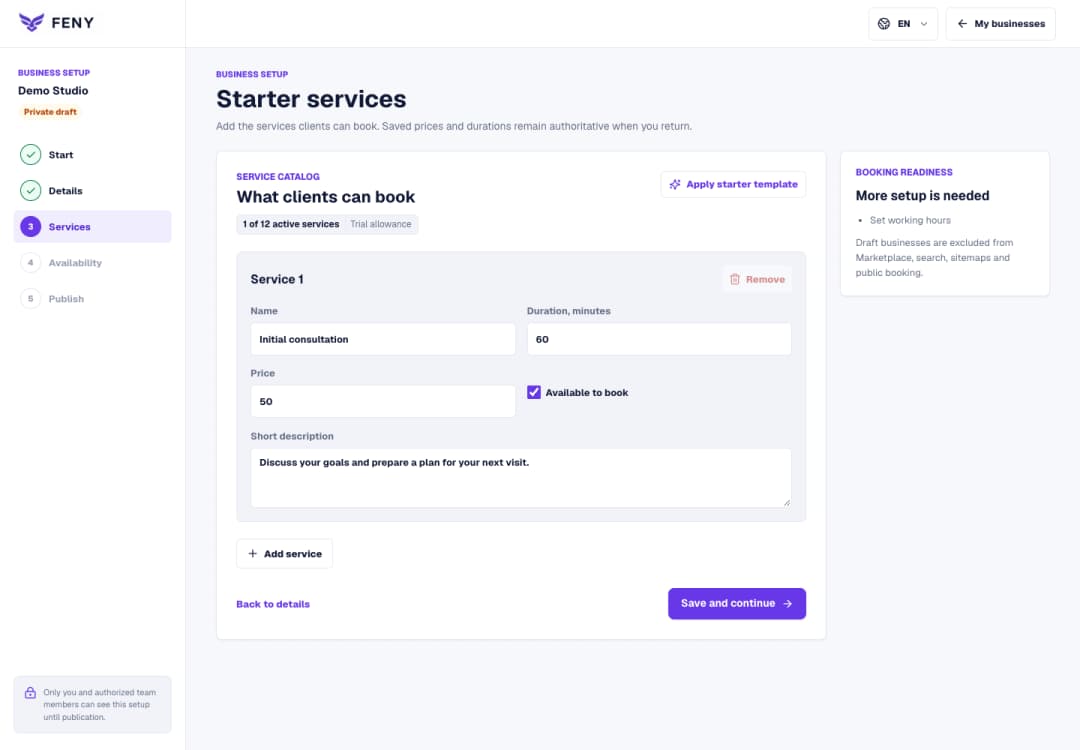
Use Starter services to enter a clear name, duration, price and short description, then continue to working hours.
Read article